Document Extraction with GPT-4o: Parse PDF, Word and Excel Files

On this page
GPT-4o can parse PDF, Word and Excel documents reliably if you treat them as pictures: render every page as an image, send the images to GPT-4o and ask it to return the text. This post shows the Python code for all three formats. Word and Excel files are converted to PDF with headless LibreOffice first. At the prices when we wrote this, extraction cost about 0.32 to 0.62 cents per page.
Why is this needed at all? LLM applications, RAG pipelines in particular, need the content of "human readable" documents like PDFs, Word documents and Excel sheets, and LLMs can't read these file formats directly.
People have worked on this problem for decades. The most common approaches were rule-based extraction and machine learning based solutions, and both have limits. Rule-based solutions are very fast, but they only handle a narrow variety of documents. Machine learning based solutions are more flexible, but very slow, and they still struggle with the sheer variety of document formats and layouts.
In our article about using LLMs to extract data, we discussed how and why LLMs might finally solve this problem. Using a billion-parameter model to extract text looks ridiculous, but the results were miles better than anything we had before. If you want more background on how LLMs help with document parsing, we recommend reading that article first.
This article builds on it and shows how to extract data with GPT-4o, which is arguably one of the best LLMs with vision input available at the time of writing. We also show how to extract data from Word and Excel documents.
Update (November 2026): OpenAI has deprecated GPT-4o, and the
gpt-4o-2024-08-06 snapshot used below shuts down on January 14, 2027 (see
the deprecations page).
The approach works the same with newer vision models, but they tokenize
images differently: according to OpenAI's vision
guide, the
85-token low detail cost and the 512px tiles described below apply to
GPT-4o, and on some newer models low does not always use fewer tokens than
high. Recalculate the per-page cost for the model you use.
The strategy: parsing documents as images with a vision LLM
Our introductory article on document extraction with LLMs explains the strategy in detail. In short:
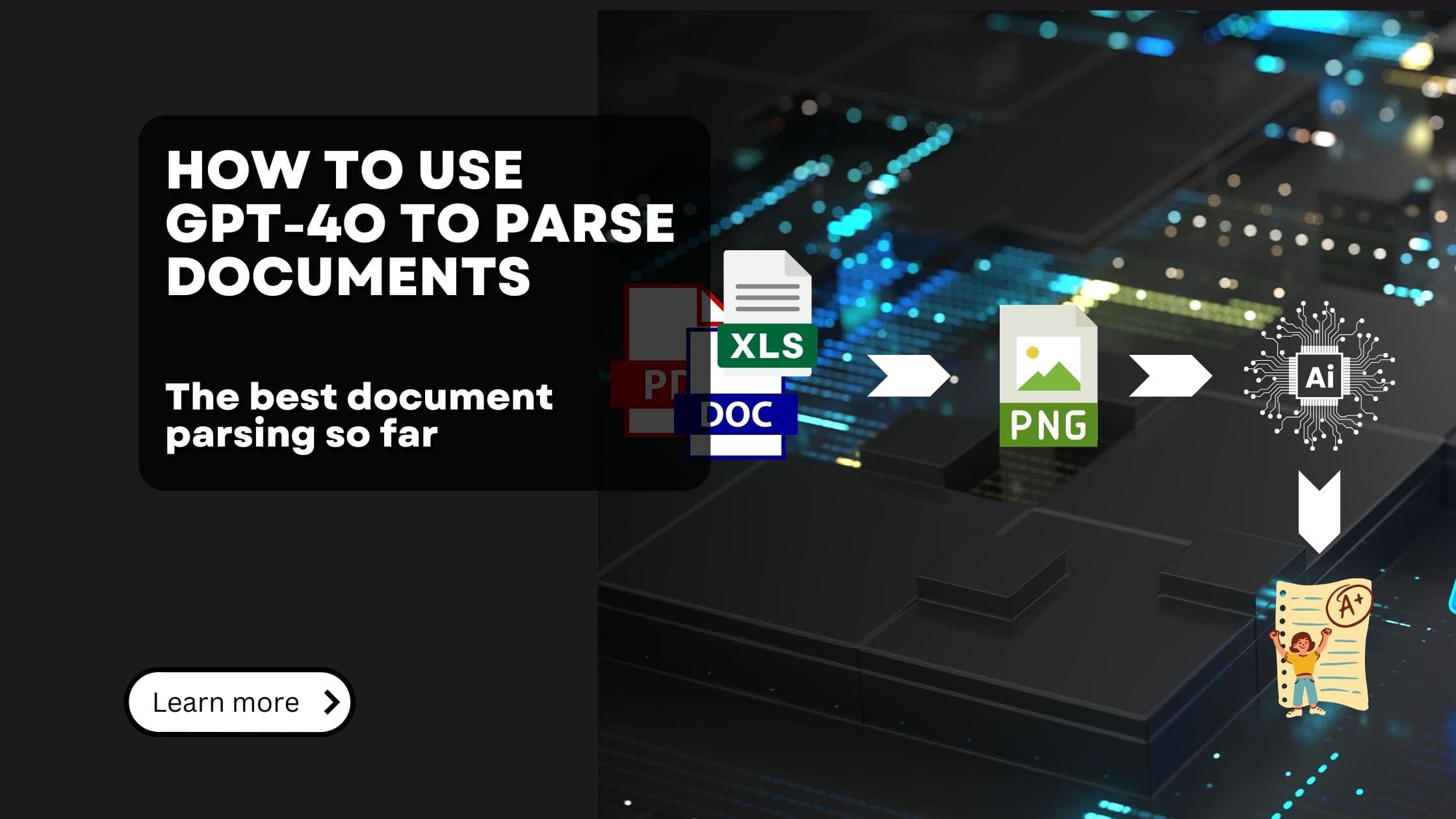
- Convert the document into an image.
- Send the image to an LLM with vision capabilities.
- Prompt the LLM to extract the text from the image.
Taking screenshots of documents, sending them to an LLM and "asking" it to kindly return the text sounds a little ridiculous at first. On second thought it makes sense. We ask the LLM to "read" the document by giving it a visual representation, which is pretty much how we mere humans extract text from documents too.
This strategy has worked very well for us in practice, for three reasons.
LLMs are very good at understanding document context, and they identify layouts, tables and other document structures.
Prompting lets us define the output. For example, we can ask the model to skip headers, footers and other irrelevant parts, or to format headlines in a specific way (such as Markdown).
Because we screenshot the whole page, the LLM can also extract information from images embedded in the document, even charts. See our article on image analysis with LLMs for more information.
Setting up Python for GPT-4o document parsing
We'll use good old Python for this.
Parsing PDF files with GPT-4o
We'll start with what is, surprisingly, the easiest document format: PDFs.
(Why surprisingly? Historically, PDFs are a pain to work with. They have no standardized layout, no concept of tables (tables in PDFs are just lines and text!) and they can contain images, charts and visualizations of all kinds. Conventional data extraction systems struggled with PDFs for exactly these reasons.)
-
First, import the packages and initialize the GPT-4o API client.
Note: We use the async version of the OpenAI SDK so that we can send multiple requests to the API concurrently.
-
Next, load the PDF file
-
To create the images we send to GPT-4o, loop through all the pages and convert each one to an image with pypdfium2 .
One important detail: GPT-4o requires the images to be base64 encoded
-
Now send the images to GPT-4o and wait for the extracted text. The
parse_page_with_gptfunction takes a single base64 encoded page and returns the extracted text. We then use asyncio to send all the pages of the document concurrently, so they run more or less in parallel.Note that we use the
detail=lowparameter in the API call. OpenAI offers two different image qualities :lowandhigh. Withlow, OpenAI's image pipeline downsamples the image to 512x512 pixels.highalso downsamples the image to 512x512 pixels, but then additionally creates detailed crops of 512x512 pixels each. The model first sees the low fidelity image to get an overview, followed by the detailed crops. The catch: if the details you want to extract are larger than 512 pixels, the detailed crops are useless. For document extraction you almost always get better results (at lower cost) with thelowquality setting.We use the backoff library to handle rate limiting. This matters, because the OpenAI API has fairly strict rate limits.
-
As a final step, join the parsed per-page texts into a single document text.
That's it. With a few lines of code, we extracted the text from a PDF file with GPT-4o. In our experience, the parsing quality isn't comparable to conventional methods, in the most positive way imaginable.
How much does extracting a PDF with GPT-4o cost?
LLM document parsing is easy to set up, but what does it cost with OpenAI's models?
As usual, you pay for both the input tokens and the generated output tokens.
The output tokens are easy to calculate: they are the tokens of the text extracted from the document. As of November 2026, the rate for GPT-4o is $10 per 1 million output tokens (and $2.50 per million input tokens).
In our experience, a very full page has around 600 tokens, while most pages have closer to 300. So one page costs about 0.3 to 0.6 cents in output tokens.
Then there are the input tokens, which are surprisingly cheap for low-res
images: OpenAI charges 85 input tokens per image, which adds 0.0213 cents per
page.
Overall, you pay about 0.32 to 0.62 cents per page.
Why send one page at a time instead of the whole document?
Why go through the hassle of splitting the document into pages and sending them to the API one by one? Because of the resolution limits of the GPT-4o vision model. As outlined above, the image is downsampled to 512x512 pixels, so the text has to stay readable at that resolution. A single A4 page is usually readable enough at 512x512.
Parsing Word (DOCX) documents with GPT-4o
Next up: Word documents in the DOCX format. Why is this different from parsing PDFs? Because Microsoft, in a move that can only be described as absolutely genius (sarcasm...), decided not to store any page break information in the file format. The rendering software decides where pages break. (That's also one reason why different DOCX renderers show the same document slightly differently.) For us, it means we can't simply take screenshots of the pages, because we don't know where a page starts and ends.
We ran a lot of experiments and found that the best way is to transform the Word document to PDF first and then use the PDF strategy described above.
Yes, dear reader, the best way to parse DOCX Word documents seems to be:
- Convert the docx to pdf
- Convert the document into an image.
- Send the image to an LLM with vision capabilities.
- Prompt the LLM to extract the text from the image.
(I can't believe I'm writing this, but the output quality is indeed very, very good!)
Steps 2, 3 and 4 are covered in the PDF section, so let's focus on converting a DOCX to PDF. Again there are several ways. The one that worked best for us is to run LibreOffice in headless mode, render the DOCX and save it as PDF.
-
Install LibreOffice. On Ubuntu, you can simply use
apt install libreoffice. For other platforms, see the LibreOffice download page. -
Then create a function that returns the LibreOffice executable for your platform.
-
Next, create the conversion function. It takes a BytesIO as input and returns a
BytesIOobject containing the PDF file. If you're not familiar with BytesIO: it's a binary stream backed by an in-memory bytes buffer.- First, we create a temporary file from the BytesIO input (LibreOffice only works with files, not streams)
- Then we run the LibreOffice command to convert the file to PDF
- After checking that the conversion succeeded, we read the generated PDF file and return it as BytesIO.
Now put everything together:
Parsing Excel (XLSX) files with GPT-4o
For completeness: Excel files have the same problem as Word files. It isn't clear where a page starts and ends. Once again, we use LibreOffice to convert the Excel file to PDF and then continue as usual.
The process is exactly the same as for DOCX files, so we can reuse the functions from above.
Note: LibreOffice uses the print settings stored in your file. If you set the page layout to landscape, LibreOffice prints landscape. If you set it to fit all columns on one page, LibreOffice does so. If you set the print area to a specific range, LibreOffice only prints this range. That gives you a handy way to control the output.
Summary: parsing documents with GPT-4o
GPT-4o, one of the most capable models with vision input at the time of writing, solves a long-standing problem: extracting data from complex documents such as PDFs, Word files and Excel spreadsheets.
Converting documents into images and letting GPT-4o's visual understanding do the reading gives very high accuracy in text extraction and document parsing. It works especially well for multi-column layouts, tables and embedded images or charts, which have traditionally been hard for conventional parsing methods.
To be fair, the pipeline looks odd: we open a file, convert it to PDF, convert that to an image, send the image to a multi-billion-parameter model, ask it nicely to extract the text and finally get the text back. But the results speak for themselves. They are miles ahead of what was there before.
To recap: the same image-based approach covers PDFs, Word documents and Excel spreadsheets. DOCX and XLSX files, which have no inherent pages, just need a PDF conversion with LibreOffice first. Prompts let you control what gets extracted and how it is formatted. And the cost is modest, at about 0.32 to 0.62 cents per page for most documents. To try it, start with the PDF code above on a handful of your own documents and compare the output with your current parser.
Customer orders often arrive in exactly these three formats. For that case we built Pondhouse Orderdesk, which reads order emails, PDFs and Excel lists and turns them into orders in the ERP system.
Further reading
- Create knowledge graphs using Neo4j LLM knowledge graph builder
- Use LLMs to extract data from documents
- Using AI directly from your PostgreSQL database
- Fine-tune GPT-4o mini for a fixed output format
- Extracting web pages instead of files: Crawl4AI tutorial
- The reverse direction: creating PowerPoint presentations with AI
Interested in building high-quality AI agent systems?
We prepared a comprehensive guide based on cutting-edge research for how to build robust, reliable AI agent systems that actually work in production. This guide covers:
- Understanding the 14 systematic failure modes in multi-agent systems
- Evidence-based best practices for agent design
- Structured communication protocols and verification mechanisms

About the author
Andreas Nigg
Co-Founder, Pondhouse Data
Andreas has spent more than eight years building data applications. At Pondhouse Data he designs and ships AI systems and integrates them into complex, real-world environments.